

Finding the right TaxAct login page shouldn't require a scavenger hunt. Whether you need to finish a return you started, download last year's documents for a loan application, or figure out why your password suddenly stopped working, getting locked out of your tax account creates unnecessary stress, especially during filing season. At Tax Experts of OC, we help clients across all 50 states navigate tax challenges both big and small, and we know that sometimes the simplest tasks become frustrating roadblocks.
This guide walks you through the official TaxAct sign-in process, shows you exactly where to access current and prior year returns, and provides step-by-step fixes for the most common login problems. You'll also learn when a quick DIY solution works and when your tax situation might benefit from professional guidance from a CPA or Enrolled Agent. Let's get you into your account and back on track.
What you need before you sign in
You need three essential items ready before attempting to access your TaxAct account, and having them prepared saves time and prevents lockout frustration. The most important is your registered email address, which serves as your username for the TaxAct login system. If you created multiple accounts over different tax years or used different email addresses, check your inbox for past TaxAct confirmation emails to identify the correct login credentials. You also need your password, and if you can't remember it, start the password reset process before attempting multiple failed login tries.
Keep your registered email address accessible because TaxAct sends all account verification codes and password reset links to that address.
Your account credentials and verification details
Your email address must match exactly what you used during account creation, including any periods, underscores, or numbers. TaxAct's system is case-sensitive for passwords but not for email addresses, so "Example@email.com" and "example@email.com" work the same way. You might need to provide additional verification details like the last four digits of your Social Security Number or answers to security questions if TaxAct detects an unfamiliar device or location. Write down which device you normally use to access your account, as logging in from a new phone or computer triggers extra security checks.
Information from a prior year return
If TaxAct asks for identity verification beyond your password, you'll need specific details from a previous return you filed through their platform. Common verification questions include your adjusted gross income (AGI) from last year's return, your filing status, or the exact refund amount you received. Pull up your prior year tax return PDF or IRS transcript before starting the login process, especially if you're accessing your account for the first time in months. This information proves you're the legitimate account holder rather than someone who obtained your email and password through a data breach.
Step 1. Use the official TaxAct login page
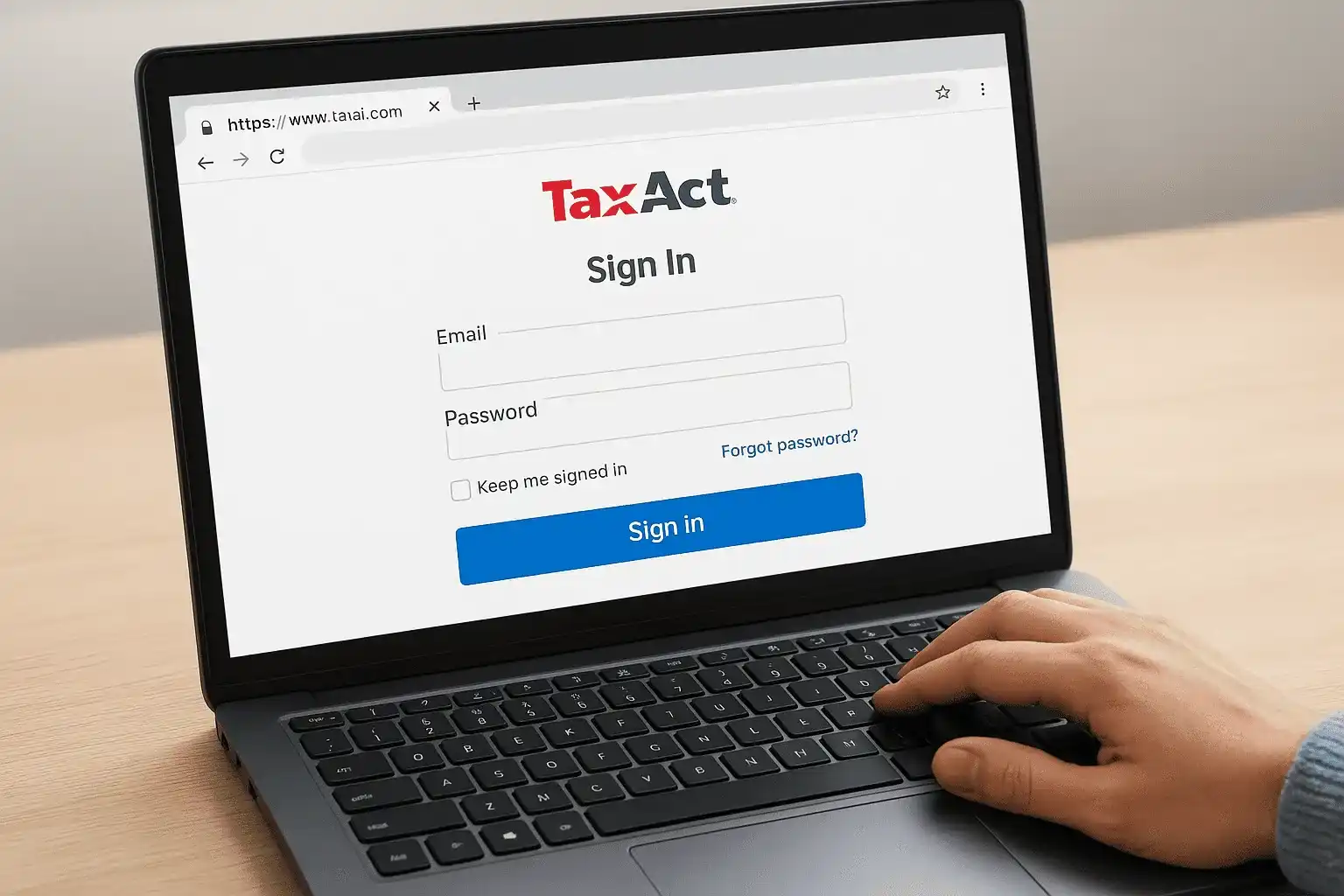
You access your TaxAct account through their official login portal at the TaxAct website, never through email links or search engine ads that might lead to phishing sites. Type "taxact.com" directly into your browser's address bar, then click the "Sign In" button in the upper right corner of the homepage. This takes you to the secure login page where TaxAct displays a padlock icon in the URL bar, confirming you're on their legitimate HTTPS-protected site rather than a spoofed domain created by scammers.
Always verify the URL reads "taxact.com" before entering your password, as phishing sites often use similar-looking domains like "taxact-login.net" or "tax-act.com."
Navigate directly to the secure sign-in portal
The TaxAct login page appears after you click "Sign In" from the main homepage, displaying fields for your email address and password along with options to stay signed in or reset your credentials. You can also bookmark the login page URL in your browser for faster access during tax season, eliminating the need to navigate through the homepage each time. Enter your registered email address in the username field, type your password carefully while watching for accidental caps lock activation, then click the green "Sign In" button to access your account dashboard.
Step 2. Access your current or prior year return
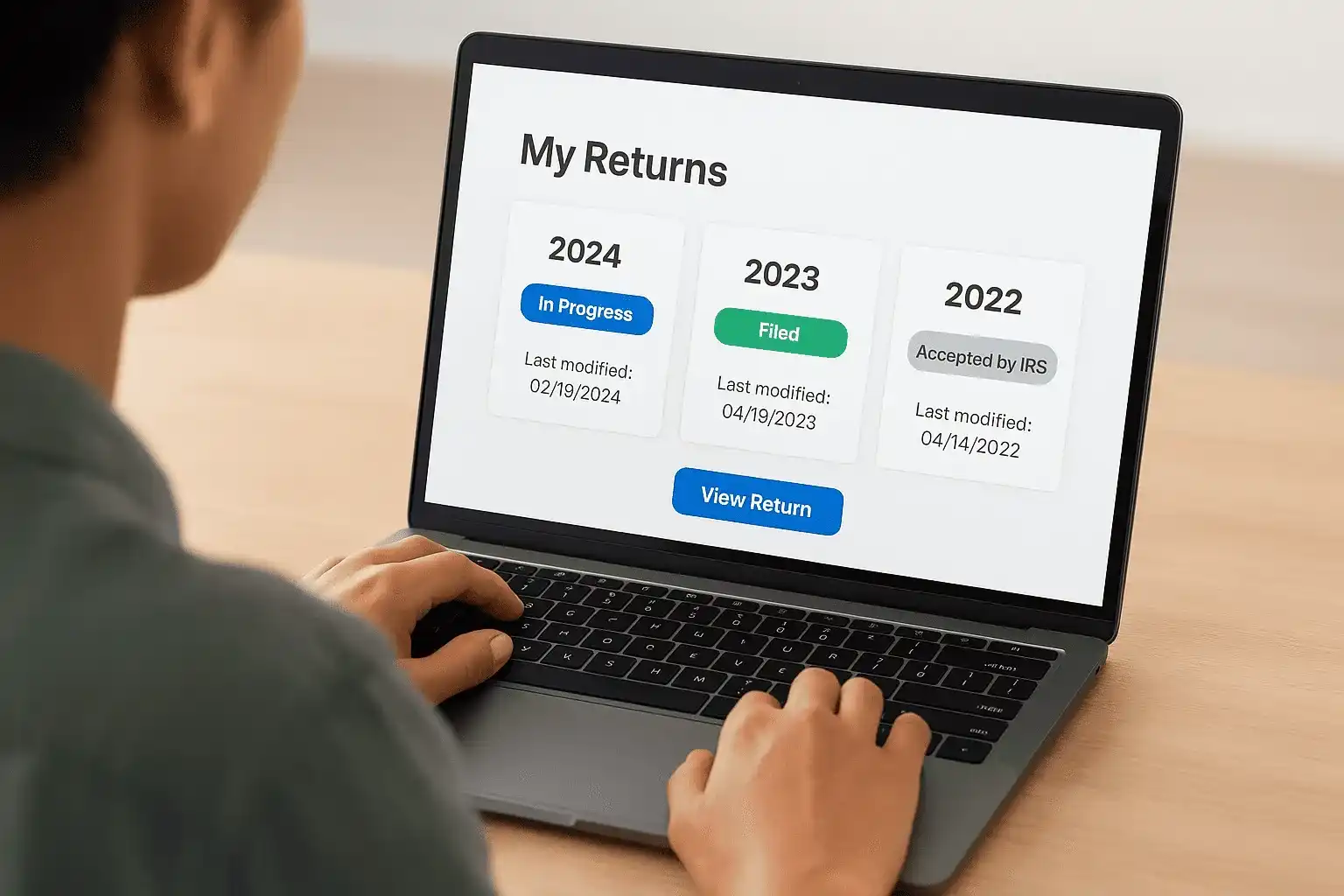
Your TaxAct dashboard displays all returns you've filed or started through the platform once you complete the taxact login process, organized by tax year with clear status labels showing "In Progress," "Filed," or "Accepted by IRS." Click the tax year you need to access, and TaxAct loads that specific return into their online interface where you can review forms, make amendments, or download PDF copies. Current year returns appear at the top of your dashboard during filing season, while prior year returns scroll below in reverse chronological order going back as far as your account history extends.
Navigate to your return after signing in
The "My Returns" section appears immediately on your account homepage after login, showing return tiles for each tax year with the filing status and last modification date displayed beneath each year. You click directly on the tax year tile to open that return in edit mode if it's still in progress, or you click the "View Return" button to access completed returns. Returns from the current tax year open in the full TaxAct preparation interface where you can continue entering information, while accepted prior year returns open in read-only view mode that allows downloading but not editing without creating an amendment.
TaxAct stores your returns for seven years from the filing date, matching the IRS audit statute of limitations period.
Step 3. Fix common TaxAct login problems
Most taxact login failures stem from three solvable issues: forgotten passwords, browser cache conflicts, or temporary server problems on TaxAct's end. You can resolve password problems immediately through the "Forgot Password" link on the login page, which sends a reset email to your registered address within minutes. Browser-related issues require clearing stored data that might contain outdated login cookies or cached pages showing error messages. Server problems appear as "Service Temporarily Unavailable" messages and usually resolve within an hour without action on your part.
Reset your password through email verification
Click the "Forgot Password" link directly below the password field on the TaxAct login page, then enter your registered email address in the form that appears. TaxAct sends a password reset link to that email within five minutes, though you should check your spam folder if nothing arrives in your inbox. The reset link expires after 24 hours for security purposes, so open it immediately and create a new password that meets TaxAct's requirements: minimum eight characters with at least one uppercase letter, one number, and one special character.
Password reset emails from TaxAct always come from "noreply@taxact.com" and never ask you to reply with personal information.
Step 4. Secure your account after sign-in issues
You should immediately strengthen your account security after experiencing any taxact login problems, especially if you suspect unauthorized access attempts or used password recovery on a public computer. TaxAct stores sensitive financial information including your Social Security Number, banking details for direct deposit, and copies of all tax forms you've filed through their platform. Taking proactive security measures prevents identity thieves from accessing this data and filing fraudulent returns in your name, which creates months of IRS complications that require professional resolution.
Update your password and enable security features
Change your password immediately after regaining access to your account, even if you just reset it through the recovery process, by navigating to "Account Settings" from your dashboard menu. Create a unique password you haven't used on other websites, combining random words with numbers and symbols rather than predictable patterns like "TaxAct2026!" that hackers guess easily. Enable two-factor authentication in your security settings if TaxAct offers this feature for your account type, which sends verification codes to your phone each time you sign in from a new device.
Two-factor authentication blocks 99% of automated hacking attempts according to security research from major technology companies.
Review recent account activity
Check the "Account Activity" log in your settings to identify any suspicious sign-in attempts from unfamiliar locations or devices you don't recognize. TaxAct displays the date, time, and IP address of recent login sessions, allowing you to spot unauthorized access patterns like multiple failed attempts from foreign countries.
Quick recap and what to do next
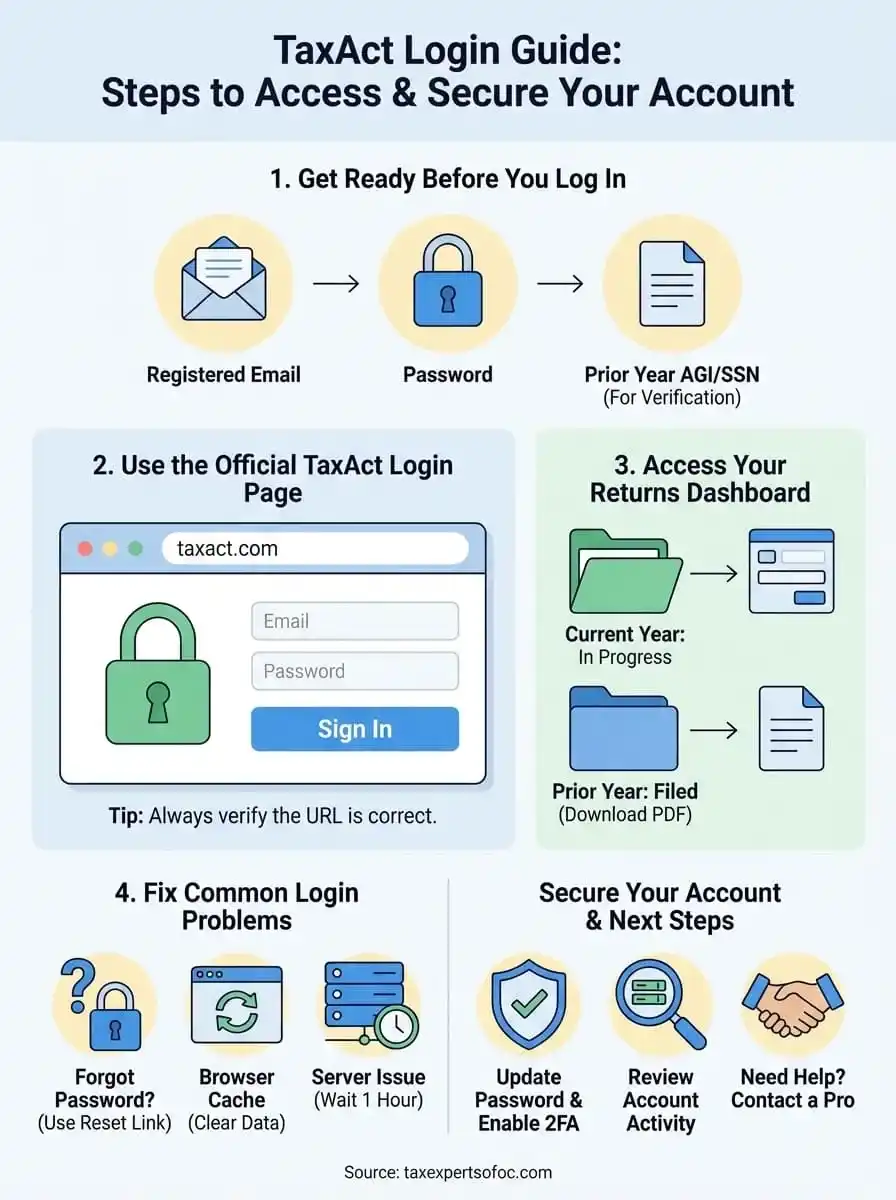
You now have everything needed to complete the taxact login process successfully, from locating the official sign-in page to fixing common password and verification problems. The guide walked you through preparing your credentials, accessing current and prior year returns, troubleshooting typical login failures, and securing your account against unauthorized access. Following these steps eliminates the frustration of locked accounts during critical tax deadlines and keeps your financial information protected.
Your next action depends on your specific situation. Complete your current tax return if you logged in to finish filing, or download prior year documents if you need them for loan applications or IRS correspondence. Contact TaxAct support directly if technical problems persist after trying the fixes outlined above. When your tax situation involves IRS disputes, back taxes, or complex filing requirements that software can't handle alone, professional representation from Tax Experts of OC provides the expertise you need to resolve issues correctly and avoid costly mistakes.